
Tutorials
Exporting GPX from Strava
Get your Strava activities into Vectora.
Start by going to the Strava website and logging into your account.
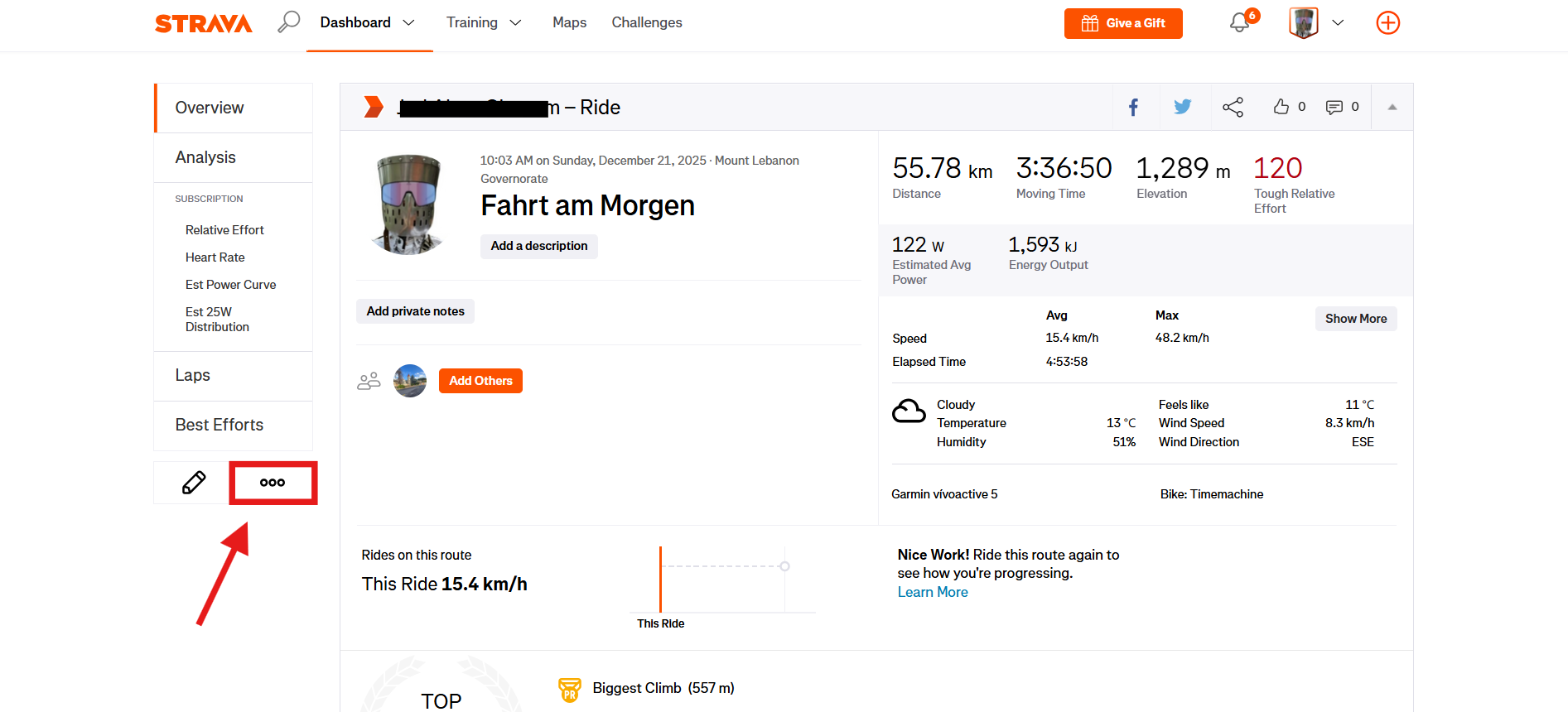
Go over to the activity you want to create an overlay for to export its GPX data.
Once on the activity page, look for the '...' menu (usually located near the top left of the activity details). Click on it to open a dropdown menu.
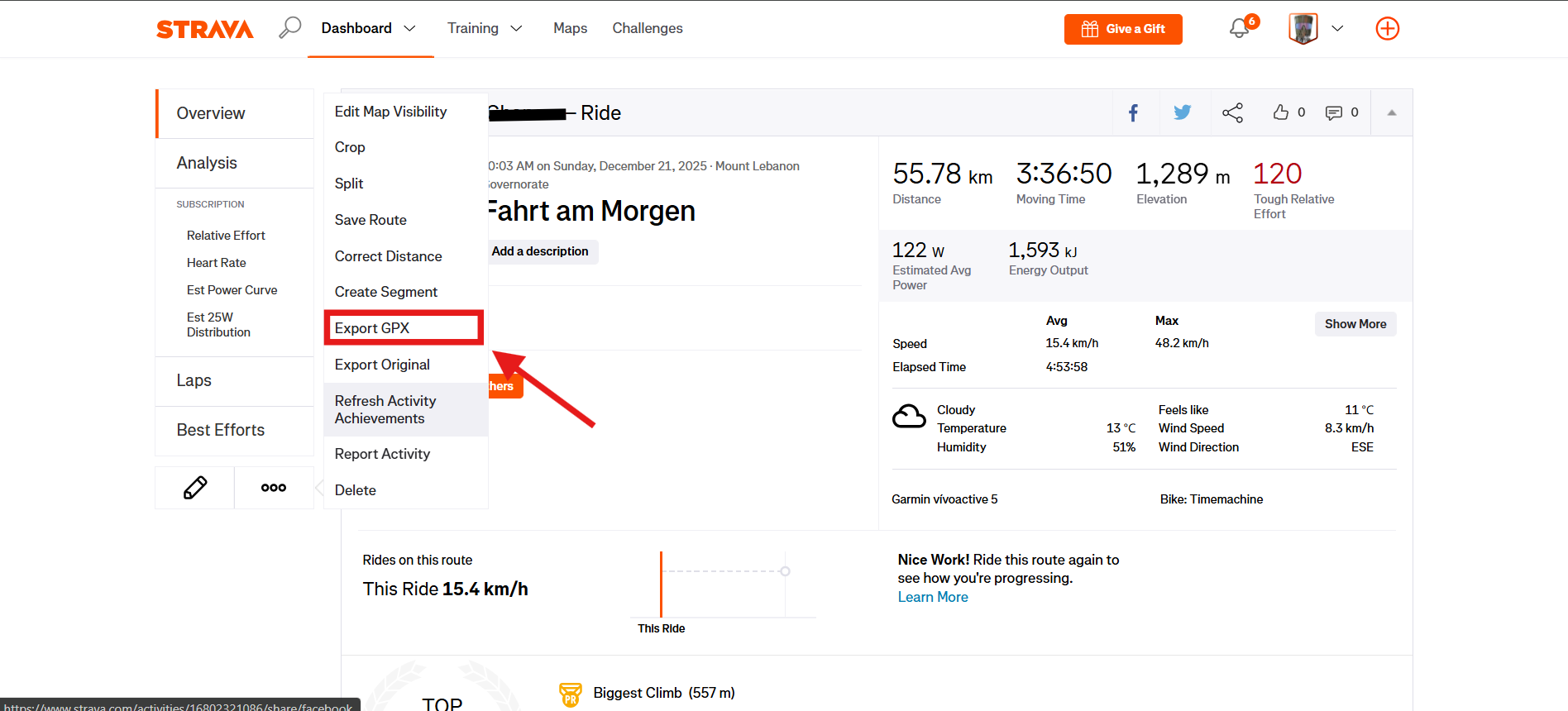
In the dropdown menu, select 'Export GPX'. This will download the GPX file of your activity to your computer.
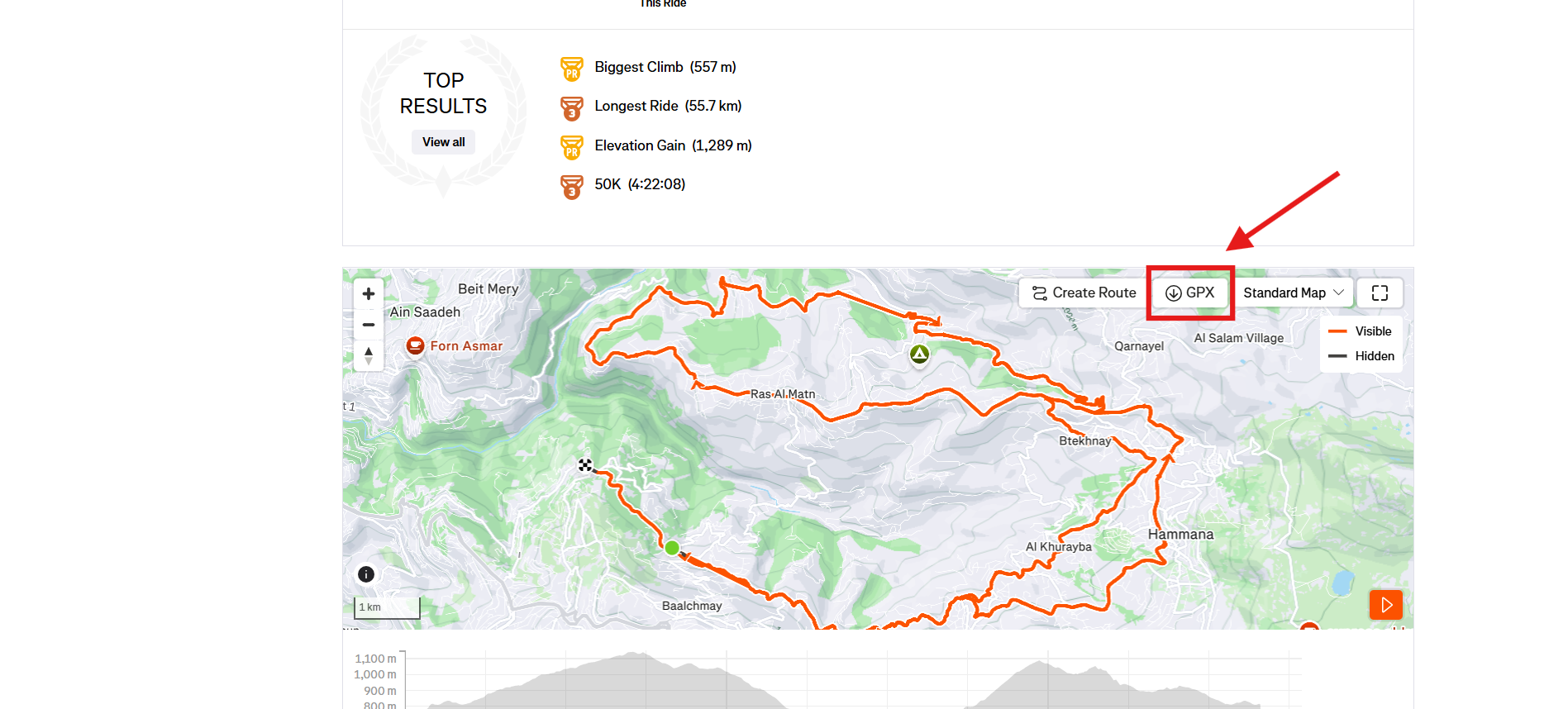
Or you can go down to the map section of the activity page, click on the 'GPX' link there to download the file.
Once you have the GPX file downloaded, you can upload it to Vectora to create your overlay video.