
Syncing Overlay with a Video
Align your activity data with your footage.
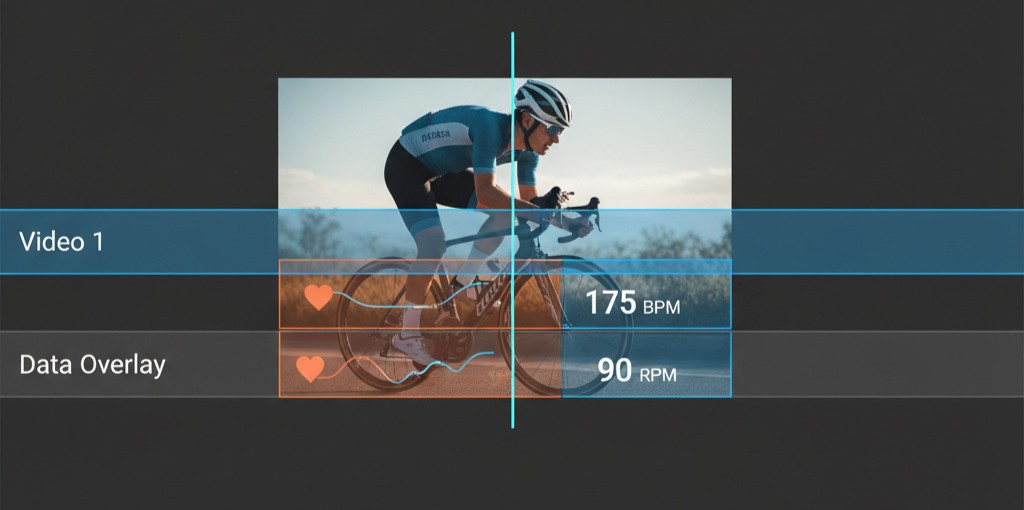
Vectora offers tools to sync your activity overlay with your video footage for a seamless viewing experience.
Important note: One has to make sure that the camera clock and the GPS device clock are synchronized before starting the activity to ensure accurate alignment.
Normally, activity devices and fitness trackers are alligned to the correct time via GPS signals. However, cameras (especially action cams) may have their clocks set manually and can drift over time.
Here you can select a video (not uploaded) frame that corresponds to a specific point in your activity data.
Vectora will autonmatically align your GPX timeline according to the selected video start time and duration.
If not applicable, It will show a message that the video timeline is out of bounds of the GPX data.
After loading your project that you created, navigate to the sync section in the editor.
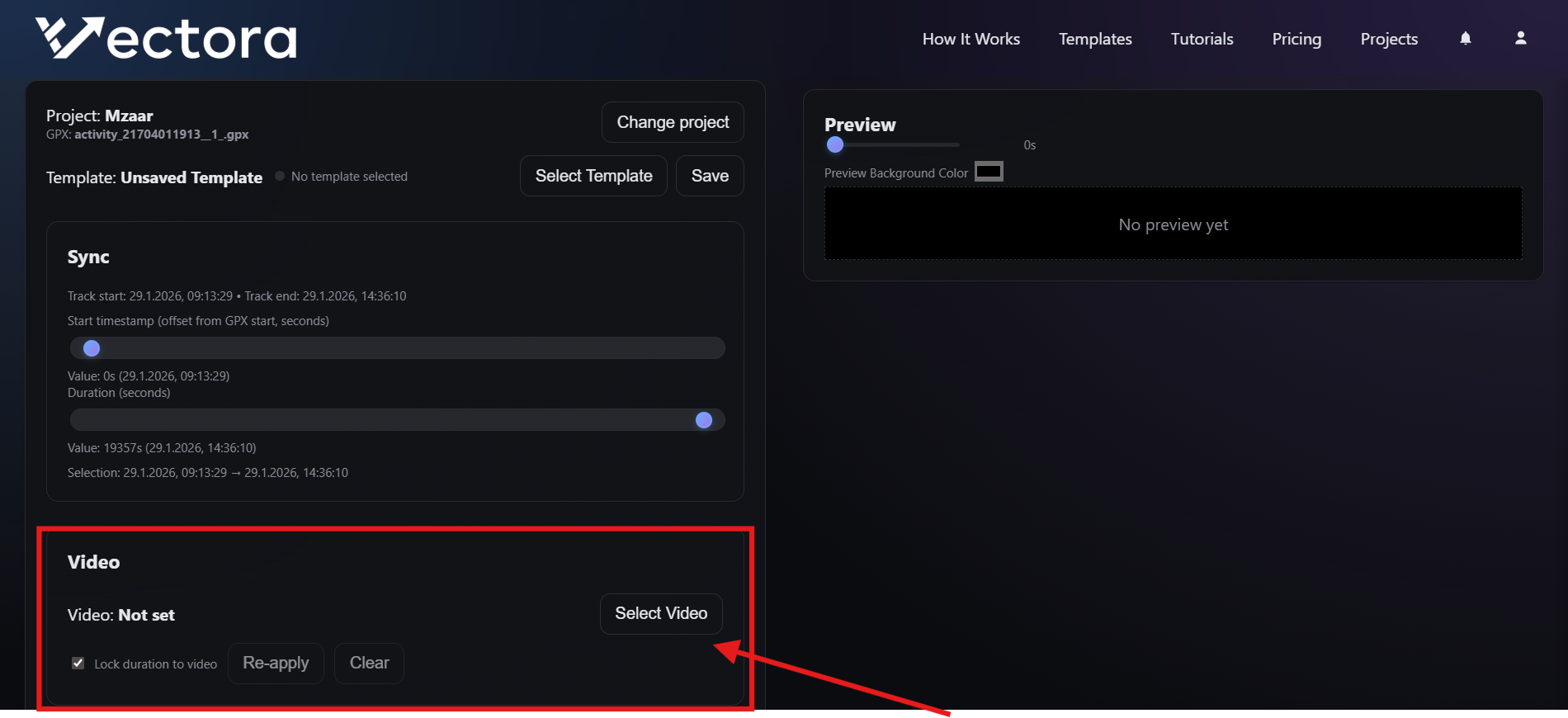
Select the video you want to sync with your activity data.
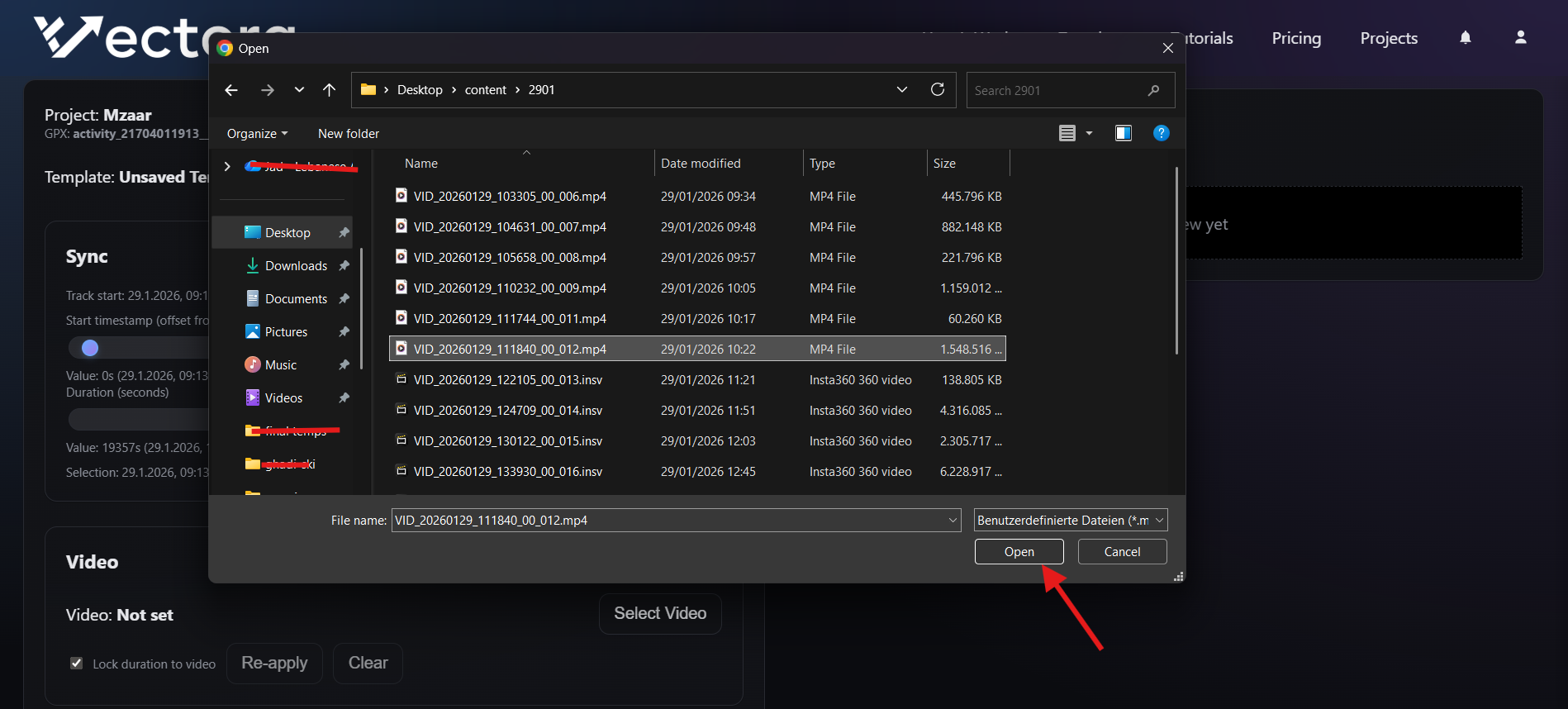
Vectora will extract the video metadata and adjust the GPX timeline accordingly.
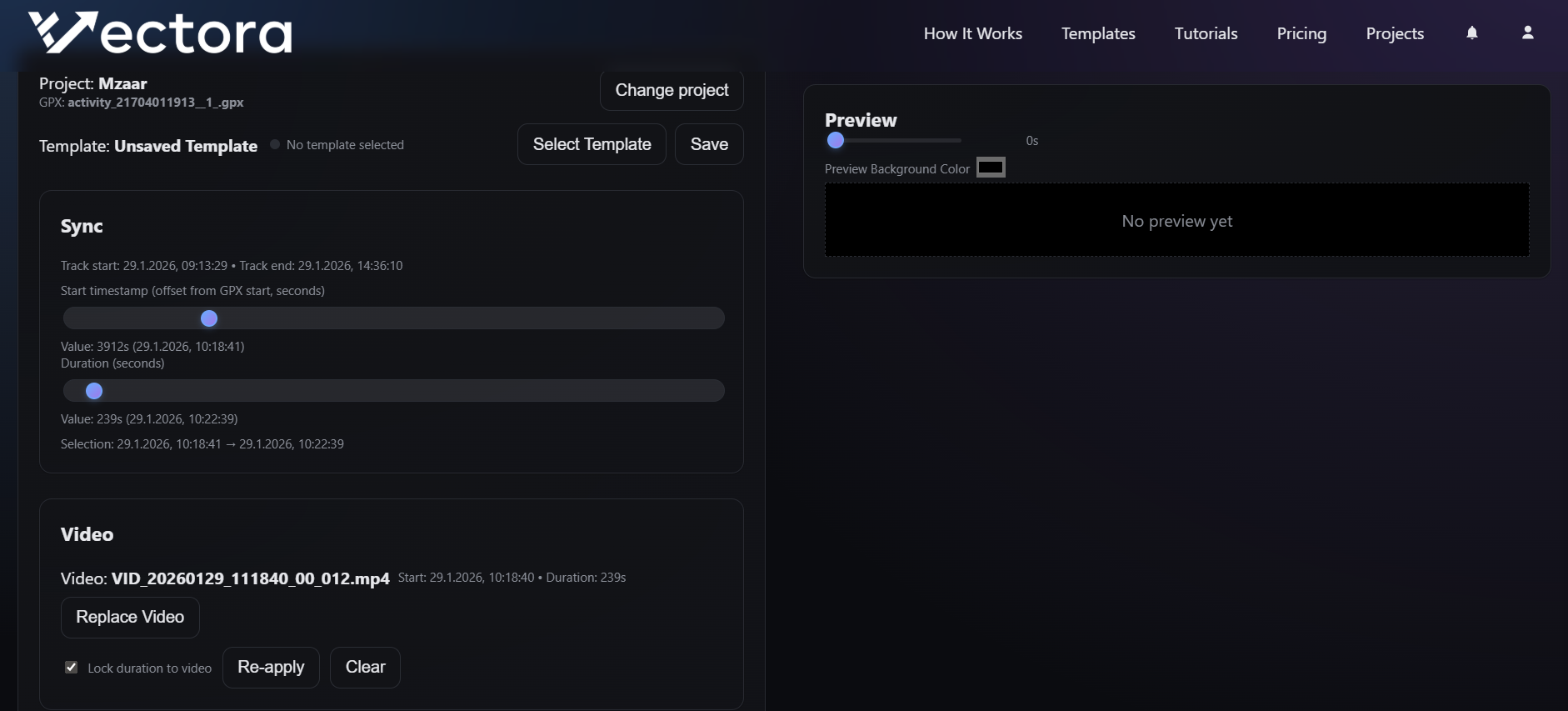
You can Lock or unlock the video sync to prevent accidental changes or do minor changes if you know you have a drift in your camera clock.
The option for manual select is still present. It is highly recommended to use a minimap or a timestamp in your overlay to do accurate syncing later in your video editor.